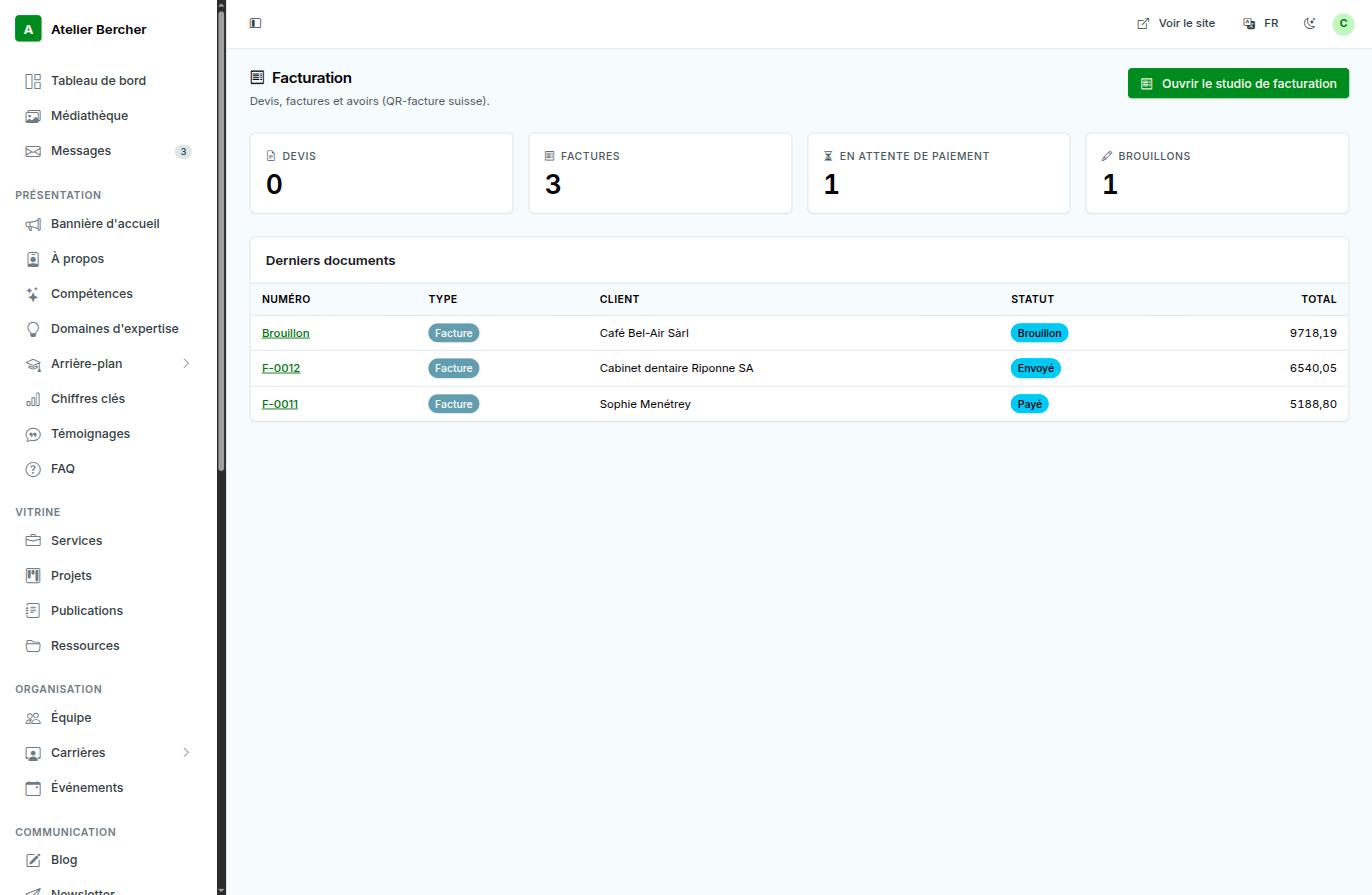
The invoicing module turns your console into the place where you quote, invoice and get paid. It exists because most independents invoice from a spreadsheet, and a spreadsheet does not know what it has already numbered.
1. Your issuer details, once
They are printed on every document and the law requires them. Instead of typing them, search the Swiss commercial register: type your company name and the form fills itself — legal name, legal form, UID, address.
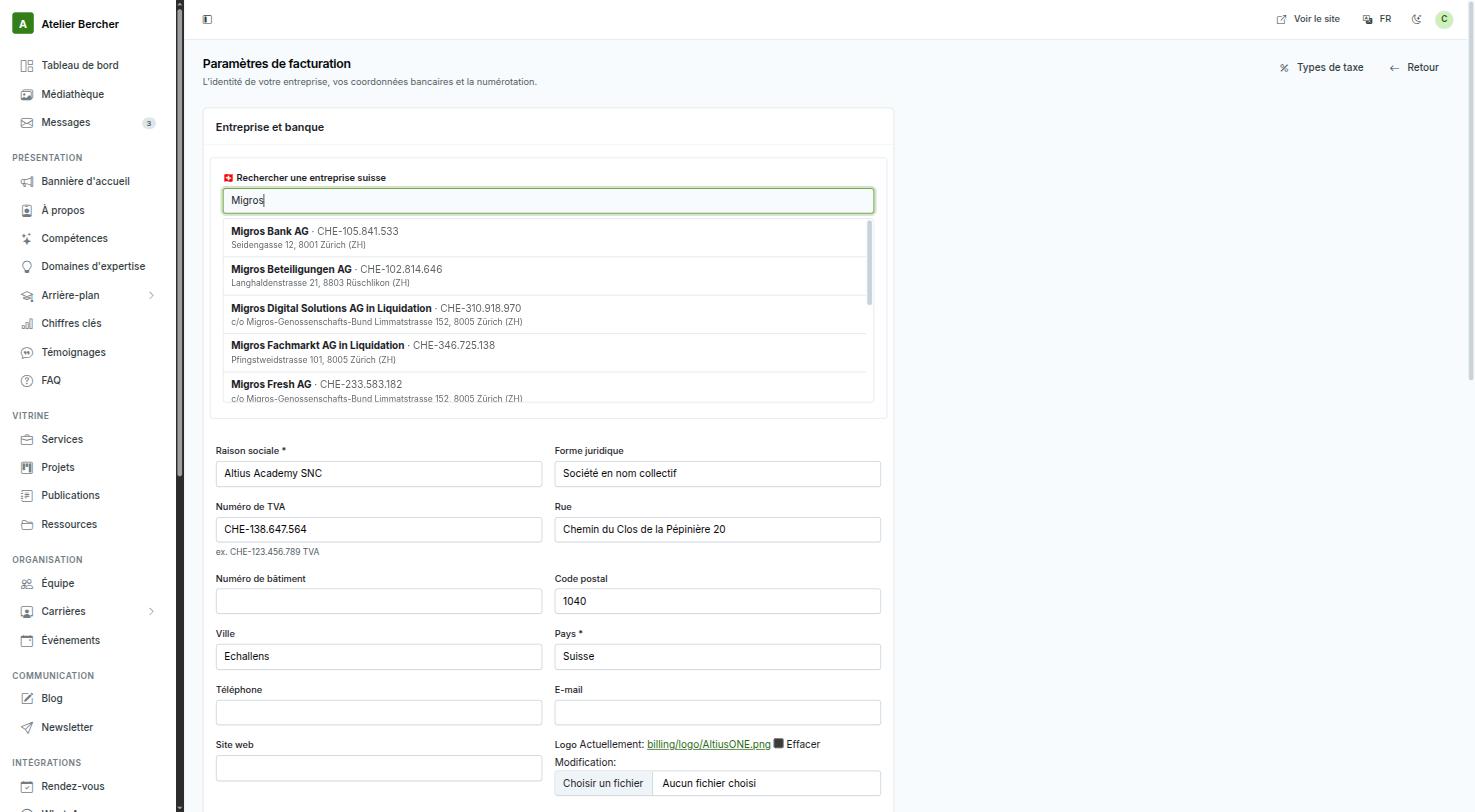
Then add your IBAN — or your QR-IBAN if your bank gave you one — and check the numbering. It is sequential and per document kind: quotes and invoices count separately, and an issued number is never reused.
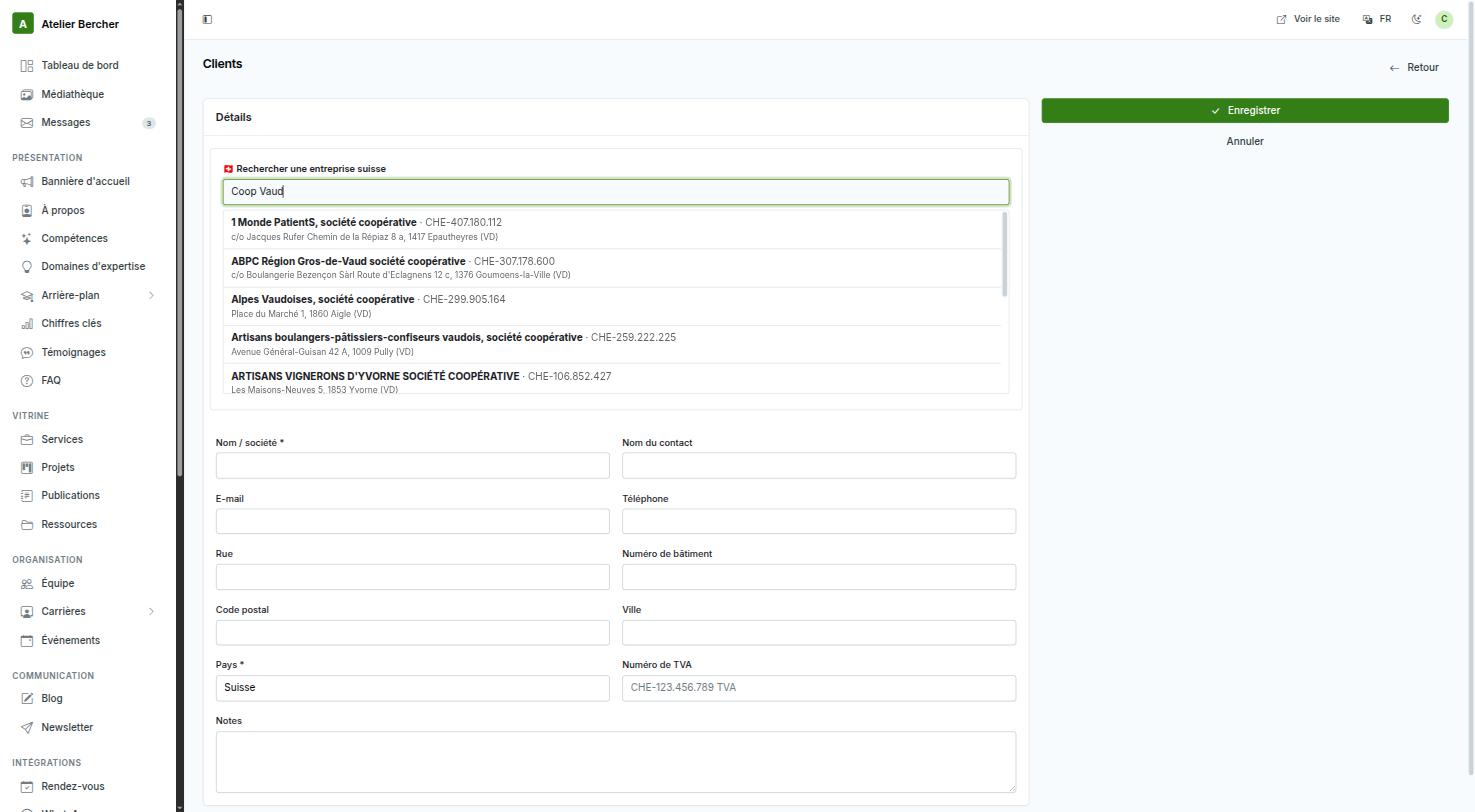
2. Your clients, from the same register
3. Writing the invoice
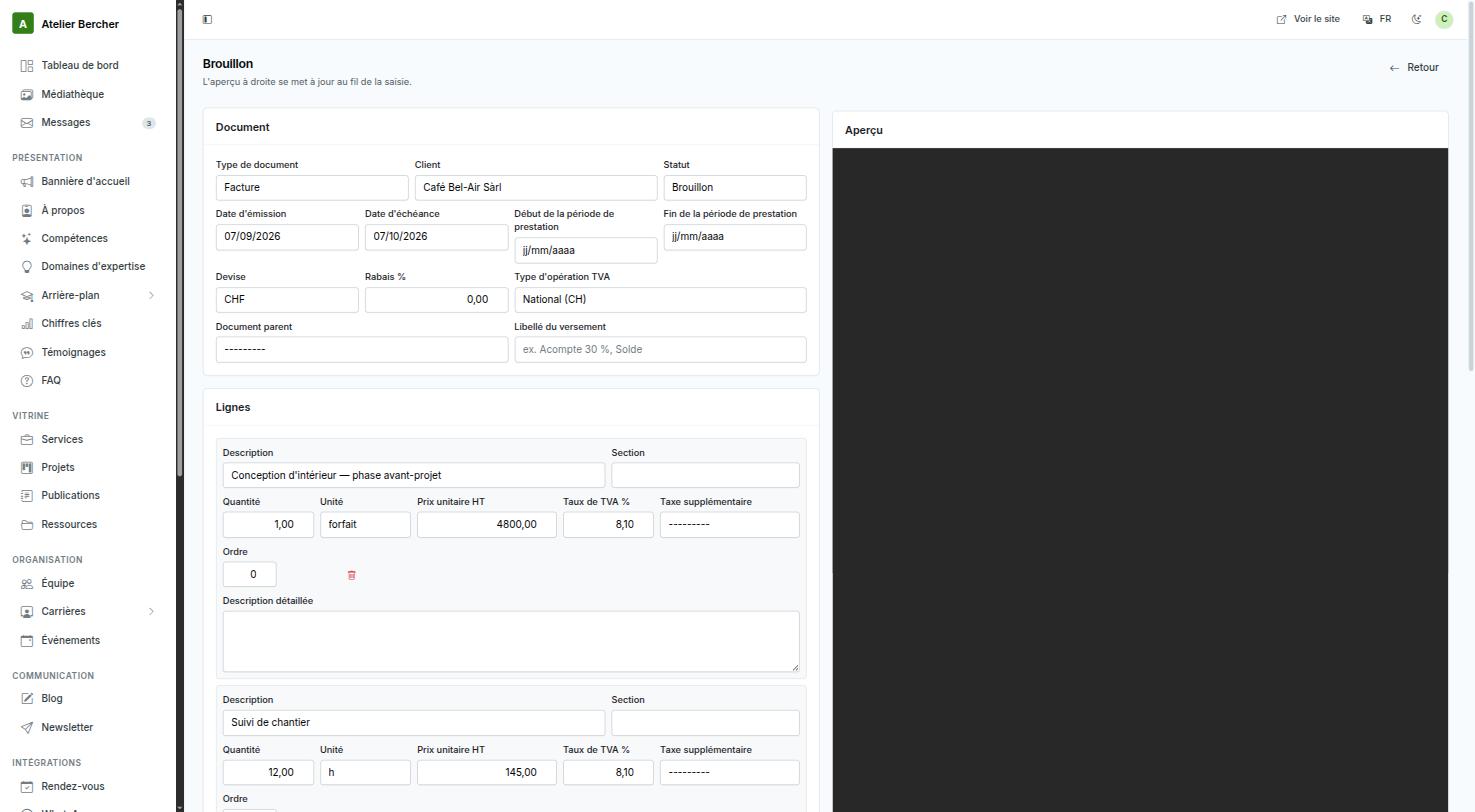
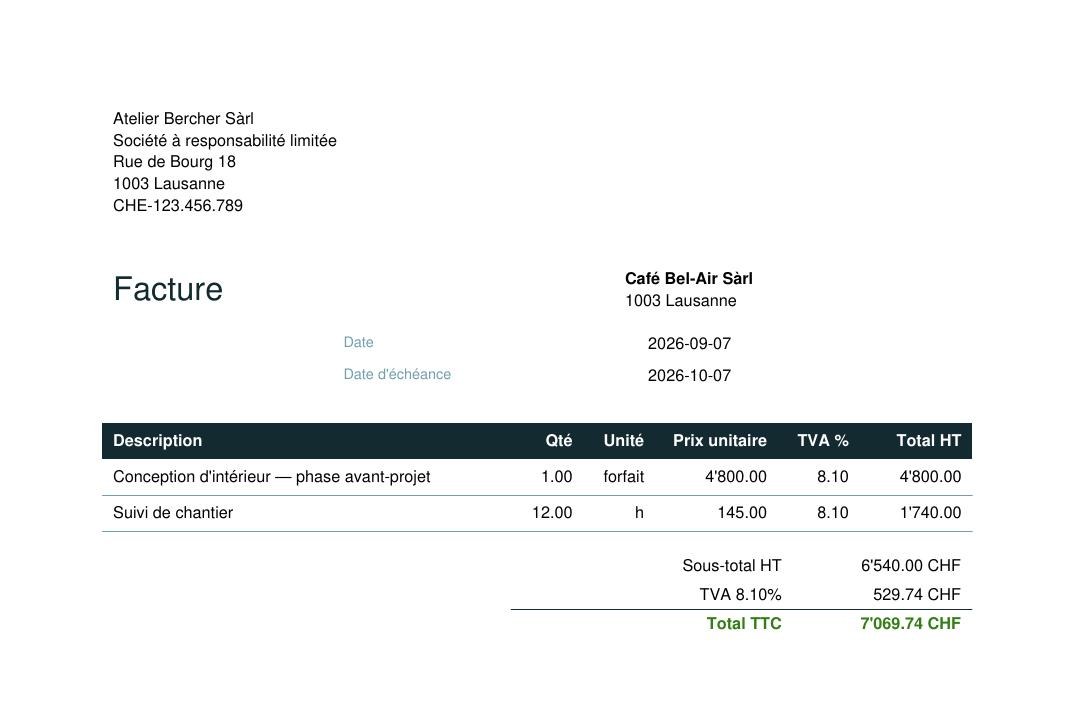
Each line takes a description, a quantity, a unit («h», «pce», «forfait»), a unit price excluding tax and a VAT rate. Two fields are worth knowing:
- Section groups lines under a heading — useful when one invoice covers two phases of a project.
- Detailed description prints under the line, for the sentence that avoids a phone call.
4. What your client receives
5. The Swiss QR-bill
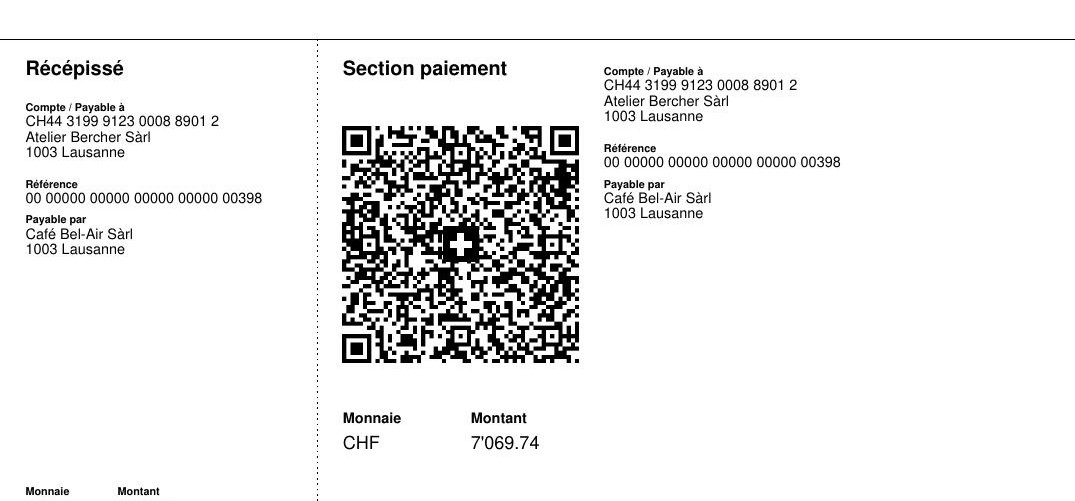
Your client scans it with their banking app: account, amount and reference are filled in. The payment comes back with its reference, so you know which invoice it settles.
The QR-bill never appears in the preview — only on the real PDF. That is deliberate: its reference derives from the saved document, and a preview is not saved. If you do not see it on screen, download the PDF before worrying.
Quote, invoice, credit note
A quote becomes an invoice without being retyped. An invoice that was wrong is not deleted — you issue a credit note against it. That is not our rule: Swiss law (CO art. 958f) requires an issued document to stay readable as it was.
Outside Switzerland
The register search and the QR-bill are the Swiss-specific parts. Without an IBAN, or in another currency, you simply get a clean invoice with your details, your numbering and your terms — those two are the parts that are skipped.
Send yourself the first invoice before sending one to a client. You will see your own layout, your numbering and your payment details as your client sees them — and it costs nothing to correct at that stage.